How to See Websites You Visited in the Last 5 Days
Updated July 2026
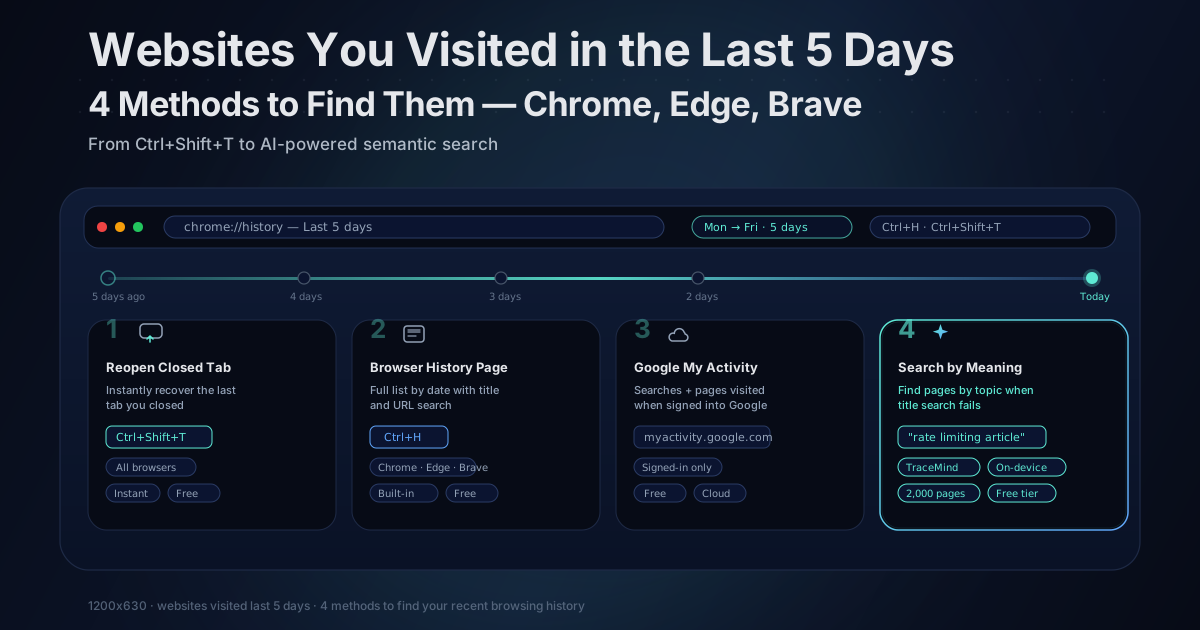
If you need to see the websites you visited in the last 5 days, your browser already has the answer. You just need to know where to look and which method works best depending on what you remember.
Here are five methods, starting with the fastest.
Method 1: Reopen a Recently Closed Tab (Fastest)
If you just closed the tab and want it back right now, this is the move:
Press Ctrl+Shift+T (Windows/Linux) or Cmd+Shift+T (Mac).
This reopens your most recently closed tab. Press it again to reopen the one before that. You can keep pressing to reopen multiple tabs in reverse chronological order.
This works in Chrome, Edge, Brave, Firefox, and most Chromium browsers. It is the fastest recovery method when you closed a tab in the last few minutes or hours. The shortcut works across the current session, meaning it resets when you close the browser completely.
One thing to know: if you closed an entire window (not just a tab), Ctrl+Shift+T will reopen the window with all its tabs, not just one. That can be a lifesaver.
Chrome deletes your history after 90 days
Keep captured history for as long as you choose. No TraceMind page cap; browser and device storage capacity still applies. Core history search stays on your device; optional Pro Chat uses your chosen AI provider.
Add TraceMind to ChromeMethod 2: Open the Full Browser History Page
For anything beyond the last few minutes, open the history page. The steps are almost identical across Chromium browsers, but here they are spelled out per browser.
Chrome
- Press Ctrl+H (Windows/Linux) or Cmd+Y (Mac), or type
chrome://historyin the address bar. - Your history opens in reverse chronological order, grouped by day.
- Scroll to the last 5 days, or type a keyword in the search bar at the top to filter by title or URL.
Edge
- Press Ctrl+H, or type
edge://historyin the address bar. - Edge opens history in a panel or full tab. Use the sort and filter controls to group entries by day.
- Scroll or search to find the day and site you want.
Brave
- Press Ctrl+H, or type
brave://historyin the address bar. - Your history opens in reverse chronological order, just like Chrome.
- Scroll to the last 5 days, or use the search bar to filter by title or URL.
Each entry shows the page title, the URL, and the time you visited.
Searching Within History
Use the search bar at the top of the history page. Type any word you remember from the page title or URL. If you know the site was about "React hooks" or you remember it was on "stackoverflow.com," try those terms.
The limitation worth knowing: Chrome, Edge, and Brave only search page titles and URLs. They don't index the content of pages. If the page had a vague title like "Documentation," "Article," or "Getting Started," your keyword won't find it by topic.
Filtering History by Specific Date
Chrome's documented local workflow is to open chrome://history, review the day groups, and use the search box for a remembered keyword. You can also type @history in the address bar, press Tab, and enter a keyword. Chrome does not document an arbitrary local start/end range or a date-string filter. For a fuller comparison, see how to search Chrome history by date.
Edge also presents history chronologically, but its exact controls vary by release and policy. Check the current Edge Help for any date or filter controls instead of assuming that Chrome's behavior or a custom range is available.
Browsing by Date and Favicon
If keyword search comes up empty, scroll manually. History is organized by date. Find the approximate day and scan entries visually. Favicons (the small icons next to each entry) help a lot. You often recognize a site by its icon faster than by its title. A small orange RSS icon, a blue bird, a red YouTube logo, a GitHub octopus. Your visual memory is often better than your keyword recall.
Method 3: Check Google My Activity
If you were signed into your Google account while browsing, Google may have a separate record of your recent activity.
Go to myactivity.google.com and sign in. Filter by date range to see exactly the last 5 days. This page shows your Google searches and, depending on your settings, the websites you visited. It can help you retrace your steps even when Chrome's local history comes up short.
For example: you don't remember the website name, but you remember searching for "best project management tools" before visiting it. Google My Activity shows that search query. From there you can figure out which result you clicked.
Important caveats: this only works if you were signed into Chrome with Web & App Activity enabled. It also means Google has stored your browsing data on their servers. If you use Chrome without a Google account, or with Web & App Activity disabled, this option won't help.
Method 4: Check Your Browser's Address Bar Suggestions
This one gets overlooked. Click on the address bar (Omnibox in Chrome) and start typing any fragment you remember. Chrome searches your history, bookmarks, and open tabs as you type.
If you remember the URL was something like "github.com/something-something" but don't remember the rest, type "github" and Chrome will surface recent GitHub pages you visited. The address bar searches titles and URLs, same as the history page, but the real-time dropdown format is sometimes faster for a quick lookup.
You can also type partial words. "rate limit" or "docker tutorial" in the address bar will pull up pages from your history that have those words in the title or URL.
Method 5: Search by Meaning With TraceMind
When you remember the topic but not the title or URL, keyword search fails completely. You visited a page about handling API rate limits in Node.js, but the title was "Common Patterns for Scalable Backend Services." No keyword connects those.
This is the problem TraceMind was built to solve. It indexes readable text from eligible pages it successfully captures and lets you search by meaning, not just exact words.
Instead of guessing the right title, you type what you remember about the content:
- "the article about rate limiting APIs"
- "that tutorial on setting up Docker containers"
- "the comparison of project management tools"
TraceMind uses the all-MiniLM-L6-v2 semantic model locally to match a concept to captured content, even when the exact words do not overlap. When screenshot capture is enabled and browser access permits, Free saves low-resolution previews and Pro can capture up to 1920x1080.
Core capture, indexing, storage, and search stay on your device. Optional Pro Chat sends the question and selected excerpts, titles, and URLs directly to the configured AI provider when invoked.
Free includes semantic and keyword search, low-resolution screenshots, up to 10 excluded domains, and no TraceMind page cap. Captured history defaults to keep forever, users can choose a shorter window, and browser storage capacity applies.
How to See the Last 10 Websites You Visited
If you just want the most recent handful, you don't even need the full history page. Press Ctrl+H and read from the top: history is ordered newest-first, so the first ten rows are the last 10 websites visited. For an even faster peek, click the address bar and press the down arrow. Chrome, Edge, and Brave drop down a short list of recently visited pages without leaving the tab you're on.
Recent Websites Visited Today
To see the recent websites visited today, open your history with Ctrl+H and look at the group labeled Today at the top of the list. Everything you opened since midnight sits there in reverse chronological order. If the list is long, use the history search box for a keyword you remember, or use @history in the address bar and press Tab.
Sites Visited Yesterday
For sites visited yesterday, open history and scroll to the Yesterday group, which sits directly below Today. Because history is grouped by day, yesterday's sites stay together in one block instead of being scattered through the list. Use a keyword search if you remember part of the title or URL; there is no documented date-string shortcut.
How to Check Recent History on Mobile
Chrome on Android: Tap the three-dot menu (top right) and select History. You see a chronological list with a search bar at the top.
Chrome on iPhone: Tap the three-dot menu (bottom right on newer versions) and select History.
Safari on iPhone: Tap the book icon at the bottom, then the clock icon for history. To search, pull down on the history list to reveal a search bar.
Edge on mobile: Tap the three-dot menu and select History.
Mobile history is separate from desktop history unless you have sync enabled. If you visited the page on your phone but are now on your laptop, check the device where you originally browsed, or enable sync so history moves between devices automatically.
A Quick Comparison of All Methods
| Method | Best for | Requires | |---|---|---| | Ctrl+Shift+T | Tab you just closed | Nothing | | chrome://history | Browsing from the last few days | Knowing a title or URL keyword | | Address bar suggestions | Quick lookup by URL fragment | Nothing | | Google My Activity | When you remember the search | Google account + Web & App Activity | | TraceMind semantic search | When you only remember the topic | TraceMind extension installed |
When History Doesn't Show What You Expect
There are a few common reasons recent browsing might not appear:
Incognito or Private mode: anything visited in a private window is not saved to history. Once you close the window, those entries are gone permanently. There's no way to recover them.
Different browser or profile: Chrome, Edge, and Brave each maintain separate history. If you used a different browser, or a different Chrome profile (check the avatar icon in the top right corner), look there instead.
Sync is off: history only appears on other devices if browser sync is enabled. If you browsed on your phone but are looking on your laptop, check your sync settings.
Already cleared: if you or someone else cleared browsing data recently, those entries are gone. Chrome has no built-in undo for history deletion.
The page was visited over 90 days ago: Chrome keeps local history for about 90 days before older entries are pruned. If the visit was older than that, it's likely gone from Chrome's built-in history. Extensions like TraceMind maintain their own index with captured-history retention that defaults to keep forever, subject to browser storage capacity, independent of what Chrome does with its native history. See how long Chrome keeps your history for the full breakdown.
The page was a single-page application: some web apps update the URL without triggering a full page load. Chrome may only record the initial URL. TraceMind detects supported pushState, replaceState, and popstate navigation, although capture can still fail on inaccessible or unsupported pages.
FAQ
How do I see a list of websites I visited in the last 5 days
Press Ctrl+H in Chrome, Edge, or Brave to open your history. Scroll chronologically through the last 5 days, or use the search bar to filter by keyword. On mobile, tap the three-dot menu and select History.
Can I find the last website I visited if I closed the tab
Yes. Press Ctrl+Shift+T to reopen your most recently closed tab. You can press it multiple times to reopen several closed tabs in order. This works in Chrome, Edge, Brave, and Firefox.
Does Chrome save websites visited in Incognito mode
No. Websites visited in Incognito or Private mode are not saved to your browsing history. Once you close the Incognito window, those entries are gone permanently.
How do I find a recent website when I do not remember the name
Try scrolling your history by date and scanning favicons for visual recognition. If that fails, use Google My Activity to see what you searched for, or use a content-search tool like TraceMind that lets you describe the page topic in your own words.
How far back does Chrome history go
Chrome's History page normally lists pages from the last 90 days. TraceMind maintains a separate local index: new installations default to keep captured history forever, and users can choose a shorter window. Browser storage capacity still applies.
How do I see the last 10 websites I visited
Press Ctrl+H in Chrome, Edge, or Brave. Your history opens with the most recent visit at the top, so the first ten rows are the last ten websites you visited. You can also click the address bar and press the down arrow to see recently visited pages without opening the full history page.
How do I see recent websites I visited today
Open your history with Ctrl+H and review the group labeled Today at the top of the list. Every retained visit from today appears there in reverse chronological order. Use the search box for a title or URL keyword, or @history in the address bar; Chrome does not document a date-string filter.
How do I see sites I visited yesterday
Open your history with Ctrl+H and scroll to the Yesterday group, which sits just below Today. Chrome groups retained entries by day, so yesterday's sites stay together. Search by a remembered title or URL keyword when useful; do not expect a documented date-string filter.
Stop Losing Pages You Just Visited
TraceMind makes readable content from eligible pages it captures searchable by meaning and exact terms. Core indexing and search stay on-device; optional Pro Chat is provider-backed.
Related guides
- Search your Chrome history by date
- Chrome's built-in AI history search compared
- What TraceMind's local AI search does
Chrome deletes your history after 90 days
Keep captured history for as long as you choose. No TraceMind page cap; browser and device storage capacity still applies. Core history search stays on your device; optional Pro Chat uses your chosen AI provider.
Add TraceMind to Chrome