
Chrome lets you browse local history by day, but its documented History page does not include a custom date-range filter. Open Ctrl+H (Cmd+Y on a Mac) to look through day-grouped visits, use Google My Activity if that activity was saved to your Google Account, or use a local history extension for a real date filter. TraceMind combines date filtering with readable text captured from eligible pages: Free includes fixed periods, while an exact custom start-and-end range is a Pro feature.
Choose the method that matches the job
| If you need to… | Start here | What to expect |
|---|---|---|
| Browse visits by day | Chrome History | Scroll the day groups in chrome://history; search matches retained titles and URLs |
| Check Google Account activity | Google My Activity | Filter activity saved under the account by date and product; it is not a complete local-history backup |
| Set a true local start/end range | A local history index such as TraceMind | Filters only the eligible pages the tool captured; exact custom dates are a Pro feature in TraceMind |
| Combine date plus domain | A local index, or Chrome domain search plus manual day browsing | Chrome has no single documented date-and-domain control |
| Look beyond Chrome's normal window | My Activity, an earlier export, or a previously installed local index | Recovery depends on what was saved before the source record was deleted or aged out |
Below are three ways to find Chrome activity from a specific date or range, from the built-in history view to a local searchable index.
Method 1: Browse Chrome history by day
Chrome's History page organizes local visits by day. It is useful when you know roughly when you opened a page and can browse the surrounding entries:
- Open a new tab and press Ctrl+H (Cmd+Y on a Mac), or type
chrome://historyin the address bar. - Browse the history list until you reach the day you need. Chrome groups entries under date labels as you scroll.
- If you remember part of the page title or URL, use the history search box or type
@historyin the address bar, press Tab, and enter those words. - Open the matching page from the list.
This is a practical starting point, but it has real limits. The history search matches page titles and URLs, not visit dates or the text inside pages. Chrome's current help documentation describes viewing history by date and searching it; it does not document a custom local date-range control. On a large history, finding a particular day can therefore mean scrolling through many entries.
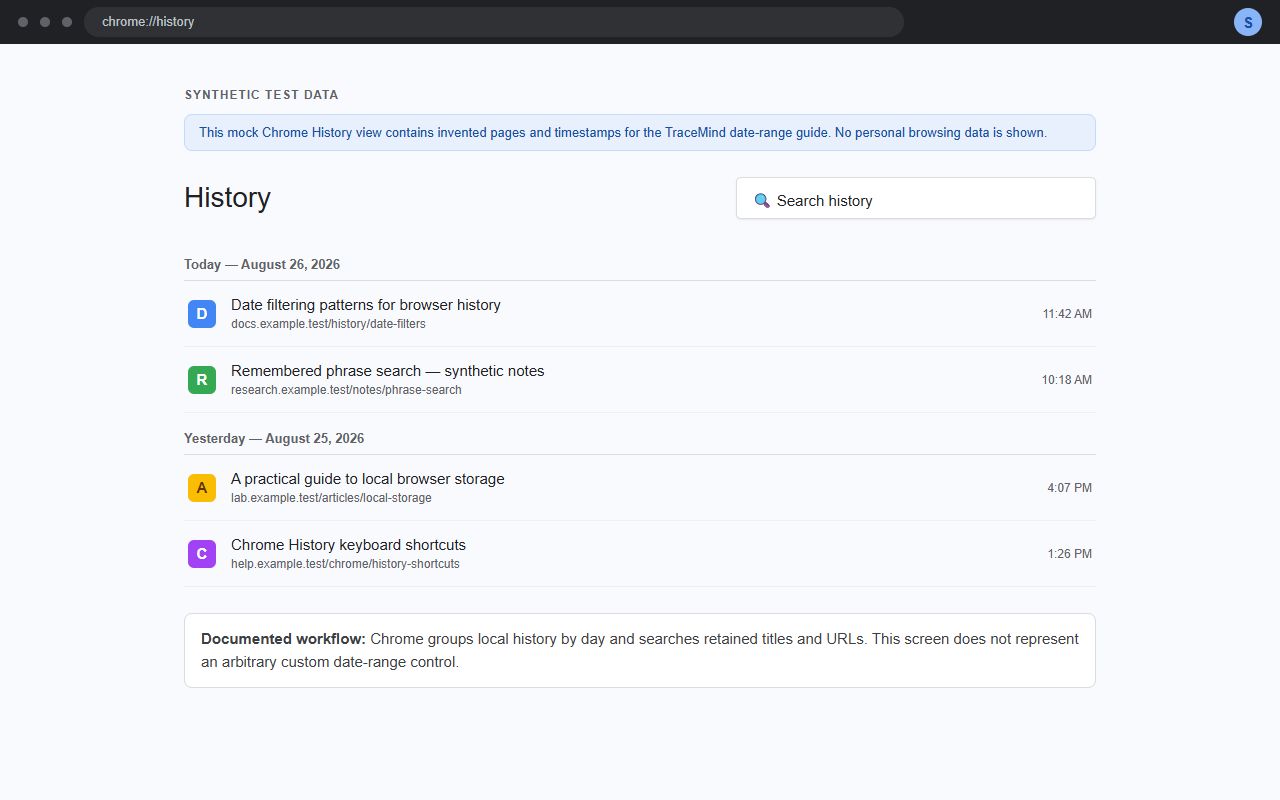
Screenshot: a disposable-browser mock with invented domains, titles, and timestamps. It demonstrates day grouping only; it is not a custom date-range control.
Desktop checklist
On Windows or Linux, press Ctrl+H. On macOS, press Cmd+Y. You can also enter chrome://history directly. Scroll until the day label you need is visible, then scan the entries or search a remembered title/URL keyword. To search without opening the page, type @history, press Tab, and enter the keyword in Chrome's address bar.
Find pages again by what you remember
Search the page content TraceMind has captured by meaning and exact terms. Core history search stays on your device; optional Pro Chat uses your chosen AI provider.
Add TraceMind to ChromeMethod 2: Filter saved Google activity by date
If your browsing activity was saved to your Google Account, Google My Activity can be a separate place to look. Its Filter by date & product control can narrow saved activity to a time window and product.
- Open My Activity.
- Choose Filter by date & product.
- Set the start and end dates, then select the relevant saved activity product if it is available in your account.
- Review the matching activity.
This is not the same as Chrome's local chrome://history database. What appears depends on your account settings and what Google saved, so it is useful as a second place to check rather than a guarantee that every local visit will be there.
For the account-retention context behind this method, see How Long Does Google Keep Search History?.
Mobile instructions
On Chrome for Android, tap the three-dot menu, choose History, and use the search field or day groups. On Chrome for iPhone, tap the menu, choose History, and browse the retained visits. Mobile and desktop histories can differ when sync is off, when different profiles are in use, or when a visit was deleted. My Activity is opened in the mobile browser and follows the same account and activity-setting limits.
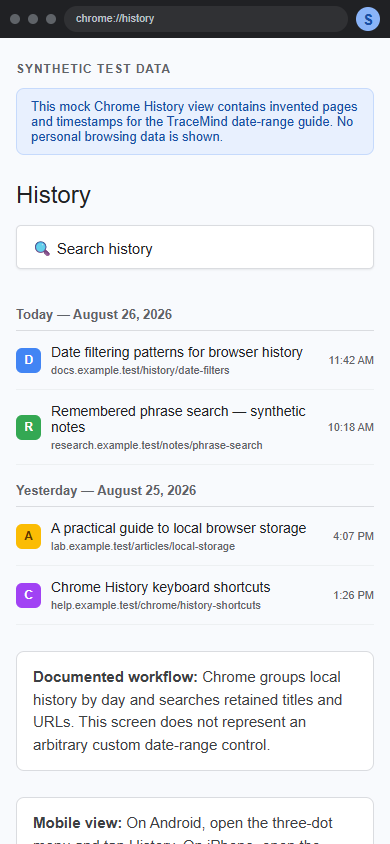
Screenshot: a disposable-browser mobile viewport with invented data. It shows the same documented day-grouping workflow at a narrow width.
Method 3: Search your history by date range with an extension
A browser extension that keeps its own local index can add content search and date filters. Here is the walkthrough with TraceMind, whose core capture and search stay on your device:
- Install TraceMind from the Chrome Web Store and pin it. It begins indexing eligible pages you visit automatically.
- Open TraceMind and go to the full-page search view.
- Choose a fixed date filter on Free, or use Pro's Custom range for exact start and end dates.
- Add a keyword or domain to narrow the results further.
- Review the results, with snippets and any available screenshots, and click through to the page.
Because the index is local, you can combine an exact date range with a topic or domain. TraceMind can only search the eligible pages it captured while it was installed; it does not recreate pages that were never captured.
Search by date and by what the page said
Native history cannot search the body of a page. TraceMind captures and indexes readable text from eligible pages you visit, so you can combine a date range with a keyword or phrase from inside a captured page.
Say you want the article you read about a specific topic back in January. Type the topic, set the date range, and TraceMind can return captured pages that discussed it even when the title gave nothing away. It combines a local semantic model (all-MiniLM-L6-v2 running via WebGPU or WASM) with full-text keyword search, so a page can surface whether you remember the exact words or only the gist. Optional Pro Chat is separate and sends the question plus selected excerpts, titles, and URLs directly to the configured AI provider. See the full-text and semantic search features for the full picture.
The three methods at a glance
| Method | Exact date range? | Searches page content? | Works after 90 days? | |---|---|---|---| | 1. Chrome History | No — browse day-grouped visits | No, titles and URLs only | Normally no | | 2. Google My Activity | Yes, for activity saved to your Google Account | Not a local Chrome content index | Depends on account settings | | 3. TraceMind date + content search | Fixed periods on Free; exact custom range on Pro | Yes, for captured readable text | Yes, for retained captures |
Search Chrome history by date and domain at the same time
Often you remember roughly when and where. Chrome has no exact combined date-and-domain filter, but you can still narrow the list:
- Search the domain in
chrome://history. Type a site likestackoverflow.comto match retained entries whose title or URL contains that text, then browse the relevant day groups. - Use the
@historyomnibox keyword. Click the address bar, type@history, press Tab, then enter a domain or another term to search history without opening the full page.
Both methods still match only the URL and <title>, never page text. TraceMind adds a domain filter and captured-content search, so “this site, this week, this topic” can be combined in one search view. If you are trying to list pages you opened on one site, see how to see every page you personally visited on one website.
Why Chrome history normally goes back 90 days
Chrome History normally lists pages from the last 90 days, then older local entries may no longer be available. That is separate from your Google account's Web & App Activity, whose retention depends on your settings; see how long Chrome keeps history for the local-window difference. TraceMind has no product page cap. New installations default to keep captured history forever, and users can choose a shorter retention window. Browser storage capacity still applies.
Troubleshooting date-range searches
The visit is older than 90 days. Chrome's History page normally lists the last 90 days. Check the relevant Google Account activity, an export you made earlier, or a local index that was already capturing the page. None of these can recreate data that was never saved.
Synced activity is missing. Confirm that you are using the same Chrome profile and Google Account as the original visit, then check whether History sync was enabled. Account activity and Chrome sync are separate systems, so one may contain a record while the other does not.
The history was deleted. Chrome has no undo archive for cleared History entries. My Activity deletion also follows its own process and may have limited retention exceptions, but it should not be treated as a recovery copy. Check another device or an earlier export only if one existed before deletion.
You need a date plus a domain. Search the domain in chrome://history, then scroll the day-grouped results. For one combined date-and-domain filter, use a local index that captured the pages; Chrome does not document a single native control for that combination.
Frequently asked questions
Can I jump to a specific date in Chrome history?
Not with a dedicated button. Chrome History is organized by day, so you can scroll to the day you need and search titles or URLs to narrow it. It does not provide a documented jump-to-date control.
How do I search Chrome history by an exact date range?
Chrome's local History page does not provide a documented custom date-range filter. If the activity was saved to your Google Account, My Activity can filter saved activity by date and product. To combine an exact date range with searchable local browsing history, use an extension that captured the pages when you visited them.
Can I search Chrome history by date and domain together?
In chrome://history, search the domain and then browse the day-grouped results manually. Chrome has no exact combined date-and-domain control. TraceMind combines date, domain, and captured-page-content search in one view.
How do I find a page from more than 90 days ago?
Chrome History normally lists pages from the last 90 days, so an older local entry may already be gone. If your activity was saved to Google, check My Activity. TraceMind has no product page cap: new installations default to keep captured history forever, and users can choose a shorter retention window. Browser storage capacity still applies.
The bottom line
You can browse Chrome History by day and search its titles or URLs, but Chrome does not provide a documented exact local date-range filter. Check My Activity if that activity was saved to your Google Account. When you remember the date and the topic but not the title, a content-aware local tool can narrow captured pages by date, domain, and what they actually said. Add TraceMind to Chrome to search the eligible pages it captured by date and content.
Related guides
- How to find a website you forgot the name of
- See every page you personally visited on one website
- What TraceMind's local AI search does
Find pages again by what you remember
Search the page content TraceMind has captured by meaning and exact terms. Core history search stays on your device; optional Pro Chat uses your chosen AI provider.
Add TraceMind to Chrome