TraceMind Logo
TraceMind
FeaturesPricingBlogFAQCompare
Add to Chrome
TraceMind Logo
TraceMind

Core history search stays on your device; optional Pro Chat uses your chosen AI provider.

Available in the Chrome Web Store

Product

  • Features
  • Pricing
  • Add to Chrome
Compare
  • vs Chrome History
  • vs Heyday
  • vs Microsoft Recall
  • vs Memex
  • vs Rewind
  • vs SurfMind
  • vs Recall.ai
  • vs MyMind

Resources

  • FAQ
  • Blog
  • Changelog
  • About
  • Contact Us
  • Email Support

Legal

  • Privacy Policy
  • Terms of Service
  • Manage Subscription

© 2026 TraceMind. All rights reserved.

Local-first core search · Optional provider-backed Chat · Privacy by design

We use privacy-friendly analytics

We'd like to load Google Analytics to understand which pages are useful. No ads, no cross-site tracking, and nothing loads until you agree. See our privacy policy.

  1. Blog
  2. How Long Does Google Keep Search History? Until You Delete
February 15, 2026•11 min read•By Fuat Shakjiri

How Long Does Google Keep Search History? Until You Delete

google search historyhow long does google keep search historygoogle my activityweb and app activitychrome history vs google historydelete google historyprivacybrowser history retention
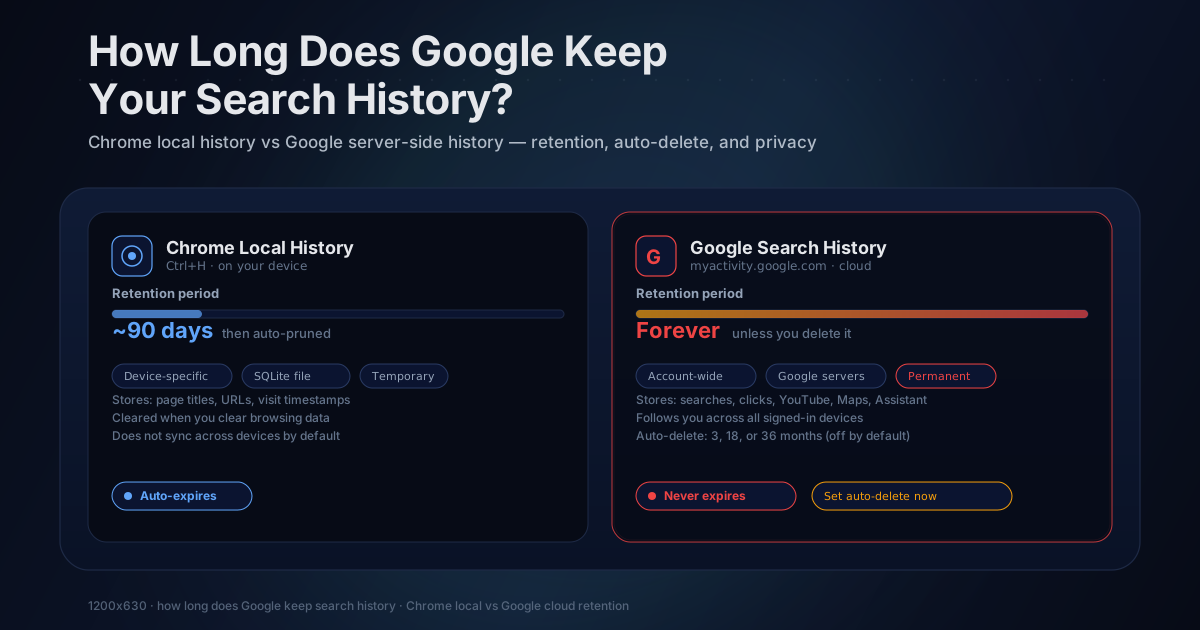
Timeline showing how long Google retains search history compared to Chrome local history

How Long Does Google Keep Your Search History? (2026 Answer)

Short answer: indefinitely, unless you tell it to stop.

If you are signed into a Google account and Web & App Activity is turned on (which it is by default for most users), Google saves every search you make and every website you visit through Chrome. That data stays on Google's servers with no expiration date until you manually delete it or set up auto-delete rules.

This is different from Chrome's local history, which lives on your device and gets pruned after roughly 90 days. Google's server-side history has no such limit, and it's far more detailed than most people realize.

Google Search History vs. Chrome Local History

These are two completely separate systems, and confusing them is extremely common.

Chrome local history is the list you see when you press Ctrl+H. It is stored in a SQLite database file on your computer (on macOS, in your user profile directory; on Windows, in AppData). Chrome keeps it for roughly 90 days before older entries get pruned automatically. If you clear your browsing data, uninstall Chrome, or switch devices, it's gone. It contains page titles, URLs, and visit timestamps, nothing more.

Google search history is what lives at myactivity.google.com. It is stored on Google's servers, tied to your Google account. It includes your search queries, websites you visited through Chrome if sync is enabled, YouTube watch history, Google Maps searches, voice commands to Google Assistant, location history, and activity from other Google services. This data persists indefinitely by default and follows you across every device where you're signed in.

The key difference: Chrome local history is temporary and device-specific. Google search history is permanent and account-wide. Clearing Chrome's local history does nothing to what Google has stored on its servers. And while it lasts, Chrome's local history is awkward to query, there's no simple built-in way to search Chrome history by date.

For a deeper look at how long Chrome itself keeps local history and what it actually stores: How Long Does Chrome Keep Your History?

Chrome deletes your history after 90 days

Keep captured history for as long as you choose. No TraceMind page cap; browser and device storage capacity still applies. Core history search stays on your device; optional Pro Chat uses your chosen AI provider.

Add TraceMind to Chrome

Where to Find What Google Has Saved

Go to myactivity.google.com and sign in. You'll see a timeline of everything Google has recorded, going back as far as your account has been active.

You can filter by date, by Google product (Search, Chrome, YouTube, Maps, Assistant), and by keyword. The search bar at the top lets you look for specific activity. Searching "flights" will show every time you searched for flights, visited a booking site, or watched a travel video across all Google properties.

Most people are surprised by how granular the record is. Google doesn't just save search queries. It saves:

  • Which search results you clicked and approximately when
  • How long you spent on sites visited through Chrome sync
  • What you asked Google Assistant by voice or text
  • What YouTube videos you watched and how far through you watched them
  • What places you searched in Google Maps and what directions you requested
  • App installs and activity from Android apps using Google Play Services

The complete picture is significantly more detailed than just a list of searches. It's a behavioral record of how you use Google products across devices and over years.

That said, My Activity is built for auditing what Google has stored about your account, not for quickly finding a page you visited last week. If you are trying to find something you saw recently rather than audit Google's retention, see how to search your Chrome history by date and how to list every website you visited in the last 5 days.

How Auto-Delete Works

Google offers three auto-delete options for Web & App Activity:

  1. Delete activity older than 3 months
  2. Delete activity older than 18 months
  3. Delete activity older than 36 months

To set this up, go to myactivity.google.com, click Web & App Activity, then choose Auto-delete. Pick the timeframe you're comfortable with and confirm. Google will then automatically delete activity older than your chosen window on an ongoing basis.

If you've never touched this setting, auto-delete is off. Everything stays forever.

One thing worth knowing: even with auto-delete enabled, there can be a delay before records are actually purged. Google notes that deletion may not be immediate and that some data may be retained in backup systems for a short period after deletion. For most practical purposes this doesn't matter, but it's worth knowing if you expected immediate deletion.

How to Turn Off Google Search History Entirely

If you don't want Google saving your activity at all:

  1. Go to myactivity.google.com
  2. Click Web & App Activity
  3. Toggle it off

This stops Google from recording new searches and browsing activity going forward. It doesn't delete what's already saved. To remove existing history, you need to use the delete controls separately on the same page.

There are also separate controls for Location History, YouTube History, and other activity types. Each has its own toggle and auto-delete settings. Turning off Web & App Activity only affects that category.

Keep in mind that turning these settings off may reduce the quality of personalized results, recommendations, and some Google features. Google autocomplete, personalized Search results, and Google Assistant responses all depend on your activity history.

How to Delete Specific Searches or Date Ranges

On the My Activity page, you have several deletion options:

Delete a single item: Find the entry in your timeline and click the X icon next to it.

Delete by date range: Use "Delete activity by" and pick a specific date range. You can also filter by Google product, so you could delete just your YouTube watch history from a specific month without touching your search history.

Delete everything: Choose "Delete activity by" and select "All time" to wipe your entire history across all products.

Bulk delete by keyword: Search for a term in your activity, then delete all matching results at once. This is useful if you want to remove a specific topic from your history without deleting everything.

Google also offers a "Delete last hour" quick option that appears after a search, which is handy if you searched for something you'd rather not have on record.

Does Deleting Actually Remove It?

Mostly, with a few caveats worth knowing. When you delete an item from My Activity, Google removes it from your account timeline and says it then begins removing it from the systems that serve you. The visible record goes away, and it stops feeding your personalization and ads fairly quickly.

The honest asterisk is what happens behind that. By Google's own policy, some data can be kept for a limited period even after you delete it, for things like security, fraud prevention, and legal or financial obligations. Some of it may survive in anonymized or aggregated form that is no longer tied to your account. And deletion is not always instant across every backup and log. So "deleted" means gone from your account and your day-to-day experience, not necessarily scrubbed from every system the moment you click.

Two things people conflate here. Deleting your My Activity affects the search history tied to your Google account. It does nothing to the local Chrome history on your device, which has its own separate deletion controls and its own roughly 90-day lifespan. If you want both gone, you clear them in two different places.

The practical takeaway: deleting works for reclaiming your account record and stopping personalization, but the strongest way to avoid a centralized history corpus is not to upload it in the first place. A local-first history tool can keep its core index on the device, provided any optional provider-backed feature is disclosed separately.

What Does "Incognito" Actually Do?

This is a common misconception worth addressing directly. Incognito mode prevents Chrome from saving a local history record of your browsing. It doesn't prevent Google from recording your searches on its servers.

If you open an Incognito window and search on Google, Google can still log that query tied to your IP address. If you're signed into your Google account in that Incognito window (some people do this), the search is tied to your account just like normal. Even if you're not signed in, Google logs aggregate search data and can associate queries with your IP.

Incognito is a local privacy tool, not a network privacy tool. For genuine search privacy, you'd need to use a privacy-focused search engine (DuckDuckGo, Kagi, Brave Search) combined with a VPN or Tor, which prevents Google from seeing the queries at all.

What Google Uses Your Search History For

Google uses your activity data primarily for personalization and advertising. Specifically:

  • Tailoring search results to your browsing interests and past behavior
  • Serving targeted ads across Google Search, YouTube, Gmail, and millions of partner sites through Google Display Network
  • Improving Google Assistant responses based on past queries
  • Recommending YouTube videos based on watch history
  • Refining Google Maps suggestions based on location and search patterns
  • Training and improving Google's AI models (subject to your account settings)

The autocomplete suggestions you see when typing in Google Search are shaped directly by your personal search history combined with aggregate data from other users. That "I feel like Google is reading my mind" experience comes from years of behavioral data being applied in real time.

Whether this personalization is useful or uncomfortable depends on your perspective. Plenty of people genuinely find it helpful. Others find it unsettling to know that a detailed record of their intellectual interests, health concerns, financial situation, and political views has been building up on someone else's servers for years.

The Privacy Tradeoff

There's a real tension here. Google's cloud history gives you powerful features: cross-device search continuity, personalized results, and a backup of your activity that survives device changes and hard drive failures. But it also means a detailed record of your digital life exists on someone else's servers.

That record can be subpoenaed by law enforcement. It can be exposed in a data breach. It can be used for ad targeting in ways you didn't anticipate when you first signed up. And even with auto-delete enabled, you're trusting Google's systems to actually delete the data rather than retaining it in anonymized or aggregate form.

I've found that most people don't think about this tradeoff until they actually look at their My Activity page and see years of granular data sitting there. It's a different thing to know abstractly that Google collects data versus seeing a timestamped record of what you searched for on a specific afternoon two years ago.

If you want search history with an on-device core, that is exactly the tradeoff local-first tools are designed to address. TraceMind stores its captured corpus in browser IndexedDB and supports local semantic and keyword search. No Google account is required for core search. Licensing contacts TraceMind, while optional Pro Chat sends the question, selected excerpts, titles, URLs, and current chat context directly to the configured provider.

For more on how on-device processing compares to cloud-based approaches: Privacy-First Extensions: On-Device vs Cloud

Google Takeout: Downloading Your Data

Worth knowing: Google Takeout at takeout.google.com lets you download a copy of all your Google data, including your full search history, YouTube history, and everything else Google has stored.

The download takes a while to prepare (Google emails you when it's ready), but it gives you a complete archive in JSON format. This is useful if you want to understand the full scope of what's stored, or if you're planning to delete your Google data and want a local backup first.

The JSON files are machine-readable but not particularly human-friendly. If you download your Search history export and open it, you'll see thousands of entries with timestamps. It's the same data you can browse on My Activity, just in a format you control locally.

The Bottom Line

Google keeps your search history indefinitely by default. The data is detailed, cross-device, and tied to your account. You can delete it, set auto-delete, or turn off recording entirely, but none of that is the default, and most users have never changed these settings.

If you're comfortable with Google's data practices and find personalization useful, the defaults may be fine for you. If you want more control, myactivity.google.com is where to start. And if you want a history tool that keeps its core captured corpus and search on the device, TraceMind is free to try with no account required.

Related guides

  • Search your Chrome history by date
  • Chrome's built-in AI history search compared
  • What TraceMind's local AI search does

Chrome deletes your history after 90 days

Keep captured history for as long as you choose. No TraceMind page cap; browser and device storage capacity still applies. Core history search stays on your device; optional Pro Chat uses your chosen AI provider.

Add TraceMind to Chrome

Share this article

TwitterLinkedIn

Related Posts

October 24, 2025·5 min read

How Long Does Chrome Keep History? The 90-Day Window

Chrome's History page lists pages visited in the last 90 days. Learn what that does and does not cover, plus ways to preserve a searchable local record.

July 17, 2026·10 min read

What Chrome's AI History Search Sends to Google

Last Tuesday I asked Chrome's new AI history search to find "that article about lithium mining I read a few weeks back." It found it. Two seconds, cle...

April 19, 2026·4 min read

Advanced Search Operators You Wish Chrome Had

Chrome history search only matches titles and URLs. See how ordinary-language search plus date and domain filters make browser history easier to retrieve.

Ready to try TraceMind?

Search your browser history by meaning, not just titles. Private, local-first core search.

Add to Chrome (Free)View Pricing
← PreviousSee Websites You Visited in the Last 5 Days (All Browsers)Next →Why You Can't Find That Website You Visited Last Week