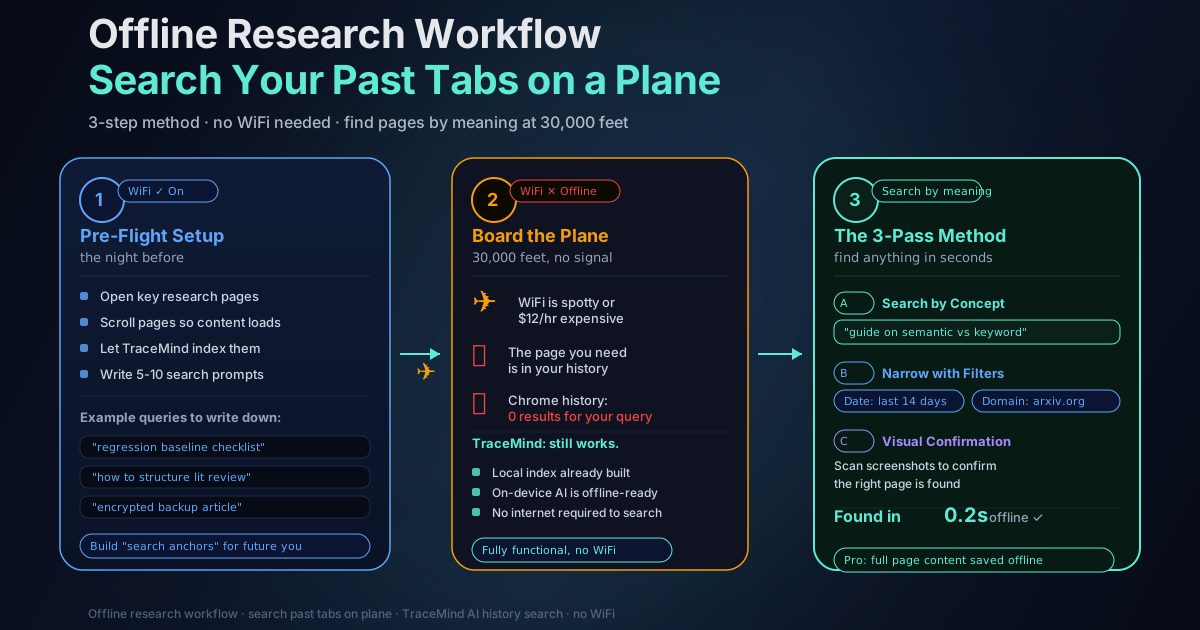
Offline Research Workflow: Search Your Past Tabs on a Plane
Updated April 2026
Planes are where good research plans go to die.
You open your laptop, the Wi-Fi is spotty (or expensive), and the one page you need is somewhere in your history. You remember the idea, not the title. You remember the topic, not the URL. And Chrome's built-in history search is basically "good luck."
This post is a practical, offline-first workflow for finding what you've already read, even when you have zero internet. It's built around the idea that your browsing history can become a private, on-device search library — so you can retrieve pages by meaning, not just keywords.
If you're using TraceMind, this workflow maps closely. Core capture, indexing, search, screenshots, and analytics run locally, so captured history remains searchable offline. Optional Pro Chat requires a configured provider and a network connection.
Why "Offline Research" Is Really "Past Research Retrieval"
Offline doesn't mean you stop learning. It means you stop fetching new sources.
Your goal becomes:
- Pull up the articles you already visited
- Re-open the docs you skimmed
- Find the tutorial you half-followed
- Recover the tab you forgot to bookmark
That's retrieval, not discovery. And retrieval is where meaning-based search beats title/URL search. Chrome's history is fine for "I visited GitHub at 2pm." It's useless for "find me that article about async error handling patterns."
The Mindset Shift: Why Chrome's Search Isn't Enough
Chrome history search works best when you remember exact words from a title or URL.
Real life doesn't work that way.
You remember things like:
- "that explanation of RRF hybrid search"
- "a post about IndexedDB encryption"
- "the flight refund policy page"
- "the guide comparing local vs cloud AI"
Meaning-based search is designed for this: describe what you remember, and the tool matches pages whose content and topic align, even if the words don't match. This is semantic search, and it runs entirely on your device in TraceMind using the all-MiniLM-L6-v2 embedding model. No query ever leaves your browser.
I've found this distinction becomes especially clear on a plane. When you're not connected, you're forced to rely on what's already indexed locally. The quality of your offline experience depends entirely on the quality of your indexing tool.
Step 1: Pre-Flight Setup
A little preparation the night before makes a huge difference.
Make Sure Pages Are Captured
If you want to retrieve something offline, you need it indexed locally before takeoff.
TraceMind indexes pages automatically as you browse. But there's a difference between passive indexing and intentional indexing. Passive indexing captures whatever you happen to visit. Intentional indexing means you deliberately open the pages you know you'll need.
Quick routine the night before:
- Open the key sources you'll need (papers, docs, guides, reference pages)
- Scroll each page at least once so the full content loads
- Let TraceMind index normally in the background (it's automatic)
- For Pro users: save Offline Page Viewer snapshots for pages you want available as reading copies
TraceMind extracts readable text from eligible pages, compresses it, and stores the result in browser storage. The captured page text is indexed alongside the title and URL.
Create a "Flight Query List"
Write 5-10 plain-language prompts you know you'll search later:
- "regression baseline checklist"
- "how to structure literature review"
- "the article about encrypted backups"
- "comparison of vector search libraries"
- Your actual memory cues in whatever language you think in
You're building search anchors for your future offline self. This takes maybe 5 minutes and saves significant frustration mid-flight.
Check Your Retention Window
Retention is user-controlled and new installations default to keep forever, but browser storage and prior settings still matter. Before a trip, search for critical pages and confirm they were captured. Better to discover a gap at home than over the Atlantic.
Step 2: In-Flight Retrieval (The 3-Pass Method)
When you're offline, use a simple 3-pass loop to find what you need.
Pass A: Search by Meaning First
Start with a concept description, not keywords.
Examples:
- "the guide that explains semantic search vs keyword search"
- "the page about Chrome history retention limits"
- "the checklist for extension privacy risks"
- "that article comparing React state management approaches"
TraceMind combines semantic search (understanding meaning via embeddings) with FlexSearch full-text indexing, fused together using Reciprocal Rank Fusion. That means it handles both conceptual queries and exact-phrase lookups. Near-instant search, even with thousands of indexed pages.
Pass B: Narrow with Filters
Once results are close, tighten with:
- Date range: last 7 days / last 14 days / last month / custom
- Domain filter: only show results from arxiv.org, github.com, docs.google.com, etc.
- Exclusions: remove noisy sites you don't want cluttering results
This is the difference between "scroll forever" and "open the right thing in 10 seconds." Honestly, I find domain filtering to be underused. If you know you were reading documentation, filtering to the specific docs domain immediately cuts results from hundreds to dozens.
Pass C: Use Visual Confirmation
When you can't remember titles, screenshots become your best friend.
A quick scan of page screenshots helps you confirm:
- Yes, this is the right article
- No, that's a similar one from a different author
- This is the same site but a different section
TraceMind captures page screenshots locally during indexing. Free tier stores them at 320x240px (enough for visual recognition), while Pro stores up to 1920x1080px. The visual history feed is useful in exactly these moments — when you're comparing two similar results and need to verify which one you actually need.
Step 3: Turn Found Pages into a Reusable "Offline Pack"
Once you find the page you needed, don't just close it. Convert it into something you can reuse.
On Free: Use Repeatable Searches
TraceMind Free includes:
- Natural language, keyword, and hybrid search
- Full-text indexing of page content
- Visual feed with screenshots and text snippets
- No TraceMind page cap and user-controlled retention
- Up to 10 excluded domains
On Free, your best "offline pack" is a reliable set of queries you can re-run. Build the list before you board, and you can recover most of what you need.
On Pro: Tag, Pin, and Save Full Pages
Pro adds features that make offline work feel organized:
- Offline Page Viewer and Saver: saves sandboxed HTML reading copies manually or automatically, with an image option and per-page size limit. Resource availability depends on what was captured.
- Tags with AI suggestions: organize pages into categories (research, reference, backlog) so you can filter by tag while offline
- Notes: attach context to specific pages ("this is the solution I actually used")
- Pins and pinned-only view: surface your must-have references instantly
- Ultra HD screenshots: up to 1920x1080px for visual verification
- Encrypted backups: creating a new passphrase-encrypted backup requires Pro; importing or decrypting one is free
- Unlimited excluded domains: keep results clean
The Offline Page Viewer is useful in plane mode because a captured reading copy can remain available without reloading the original site. It is not a guaranteed complete archive or an exact replay of every page.
Common "Plane Mode" Scenarios
"I Remember the Idea, Not the Words"
This is the most common situation. You remember learning something but can't reconstruct the exact phrasing.
Search: "the explanation of X concept" or "how to do Y" Then narrow by time: last 14 days or last month
The semantic search handles vague conceptual queries well. You don't need the exact words — describe the meaning.
"I Saw It on a Specific Site But Can't Find It"
Search the topic, then filter by domain.
Example:
- Query: "rate limit headers explanation"
- Domain filter: developer.mozilla.org
This combination is extremely effective. You're using semantic search to find the right topic, then domain filtering to confirm the source.
"I Visited It Months Ago"
This is where retention matters. Chrome documents that its History page lists the last 90 days. TraceMind defaults to keep newly captured history until you choose a shorter window, subject to browser storage capacity.
If you need to organize, annotate, or save full pages offline, that's where Pro shines. See also: How to Find Pages You Visited Weeks Ago for a full guide on deep history retrieval.
"I Need to Share Notes With My Team After Landing"
Pro's notes and tags are searchable and exportable. A passphrase-encrypted backup can protect a file you move between devices; creating it requires Pro, while importing or decrypting it is free.
"I Half-Read a Long Article and Want to Continue"
The Offline Page Viewer (Pro) saves a sandboxed reading copy, so captured content may remain available offline. It is not a guaranteed complete archive; scripts are removed and images or other resources depend on what capture succeeded.
How the Technical Setup Makes Offline Work Possible
It's worth understanding why TraceMind works offline when most AI tools don't.
The AI model (all-MiniLM-L6-v2, 384-dimensional embeddings) downloads once when you install the extension and caches locally. It runs via WebGPU if your hardware supports it, or falls back to WebAssembly. No cloud API call is needed for search.
All page data is stored in IndexedDB, which is the browser's built-in persistent database. It survives browser restarts and works without network access. SHA-256 deduplication prevents storing the same page twice, which keeps the database lean.
The vector search also lives locally. It is a brute-force cosine scan in plain JavaScript over a packed cache of your stored embeddings, with no external vector library involved. When you search, the query embedding is generated on-device, compared against stored embeddings on-device, and results are ranked on-device. The entire pipeline is local.
For context on why this matters from a privacy perspective, the privacy-first extensions overview goes deep on on-device vs cloud tradeoffs.
Quick Checklist
Save this before you travel:
- [ ] Open and scroll key pages before takeoff (so content loads and indexes)
- [ ] Write 5-10 "meaning-based" search prompts you'll use later
- [ ] Confirm recent important pages are searchable in TraceMind
- [ ] Search by concept first, then narrow by date and domain
- [ ] Confirm results using screenshots and snippets
- [ ] Pin and tag your "must reuse" pages (Pro)
- [ ] Verify the specific Offline Page Viewer reading copies you need (Pro; not guaranteed complete archives)
- [ ] Export an encrypted backup if moving devices (Pro)
Summary Retrieval Table
| Situation | Strategy | |-----------|----------| | Remember the idea, not the words | Semantic search + date filter | | Remember the site, not the page | Domain filter + topic query | | Visited months ago | Confirm it was captured, then search broadly | | Visual memory of the page | Screenshot feed scan | | Need to read the full page offline | Offline Page Viewer (Pro) | | Organizing for a long trip | Tags, notes, pins (Pro) |
Get Started
If your best research happens in tabs and you don't want to lose it mid-flight, TraceMind is built for exactly that.
Related:
- How to Find Pages You Visited Weeks Ago — More retrieval techniques for deep history
- On-Device AI for Browser Extensions — How local AI works without a cloud connection
- Privacy-First Extensions: On-Device vs Cloud — Why architectural privacy beats legal promises